
GMS GPS Coordinates to Decimal Degrees Calculator


The GMS GPS Coordinates to Decimal Degrees Calculator is a valuable tool for converting geographic coordinates between different formats. Geographical information systems (GIS) and global positioning systems (GPS) often require coordinates to be in specific formats, such as degrees, minutes, and seconds (GMS) or decimal degrees. This calculator provides a simple and efficient way to convert GMS coordinates to decimal degrees, making it easier to work with GPS data and perform various geographic calculations. It is a useful resource for geographers, surveyors, and anyone working with geographic data. The calculator is easy to use and accurate.
-
GMS GPS Coordinates to Decimal Degrees Calculator: A Comprehensive Guide
- Introduction to GMS GPS Coordinates
- How to Use the GMS GPS Coordinates to Decimal Degrees Calculator
- Benefits of Using the GMS GPS Coordinates to Decimal Degrees Calculator
- GMS GPS Coordinates to Decimal Degrees Calculator Formula
- Applications of the GMS GPS Coordinates to Decimal Degrees Calculator
- How to convert GPS coordinates to decimal degrees?
- How do you convert GPS decimals to degrees?
- How do I change Google Maps to decimal degrees?
- How to convert GPS coordinates to decimal degrees in Excel?
-
Frequently Asked Questions (FAQs)
- What is the GMS GPS Coordinates to Decimal Degrees Calculator and how does it work?
- What are the benefits of using the GMS GPS Coordinates to Decimal Degrees Calculator?
- How do I input GMS coordinates into the GMS GPS Coordinates to Decimal Degrees Calculator?
- Can I use the GMS GPS Coordinates to Decimal Degrees Calculator for commercial purposes?
GMS GPS Coordinates to Decimal Degrees Calculator: A Comprehensive Guide
The GMS GPS Coordinates to Decimal Degrees Calculator is a tool used to convert Geographic Coordinate System (GCS) coordinates to Decimal Degrees (DD) format. This is essential for various applications, including navigation, mapping, and geocaching. The GCS coordinates, also known as latitude and longitude, are typically represented in degrees, minutes, and seconds (DMS) format. However, many GPS devices and mapping software require the coordinates to be in Decimal Degrees format.
Introduction to GMS GPS Coordinates
GMS GPS coordinates refer to the Geodetic Coordinate System, which is a 3D coordinate system used to describe the position of a point on the Earth's surface. The coordinates are represented in degrees, minutes, and seconds (DMS) format, with latitude ranging from -90 to 90 degrees and longitude ranging from -180 to 180 degrees. The conversion process involves changing the DMS format to Decimal Degrees (DD) format, which is a more convenient and user-friendly format for many applications.
How to Use the GMS GPS Coordinates to Decimal Degrees Calculator
Using the GMS GPS Coordinates to Decimal Degrees Calculator is a straightforward process. Simply enter the GCS coordinates in DMS format, and the calculator will convert them to Decimal Degrees format. The calculator typically requires the user to input the latitude and longitude values in degrees, minutes, and seconds, and then click a convert button to obtain the Decimal Degrees values.
Benefits of Using the GMS GPS Coordinates to Decimal Degrees Calculator
The GMS GPS Coordinates to Decimal Degrees Calculator offers several benefits, including accuracy, convenience, and ease of use. The calculator eliminates the need for manual calculations, which can be prone to errors. Additionally, the calculator provides a quick and efficient way to convert coordinates, making it an essential tool for professionals and enthusiasts alike.
GMS GPS Coordinates to Decimal Degrees Calculator Formula
The GMS GPS Coordinates to Decimal Degrees Calculator uses a simple formula to convert the coordinates. The formula is as follows:
| Coordinate | Formula |
|---|---|
| Latitude (DD) | degrees + (minutes / 60) + (seconds / 3600) |
| Longitude (DD) | degrees + (minutes / 60) + (seconds / 3600) |
This formula is used to convert the GCS coordinates from DMS format to Decimal Degrees format.
Applications of the GMS GPS Coordinates to Decimal Degrees Calculator
The GMS GPS Coordinates to Decimal Degrees Calculator has various applications in fields such as navigation, mapping, and geocaching. The calculator is also useful for hiking, cycling, and other outdoor activities that require accurate location information. Additionally, the calculator can be used in emergency response situations where quick and accurate location information is critical.
How to convert GPS coordinates to decimal degrees?
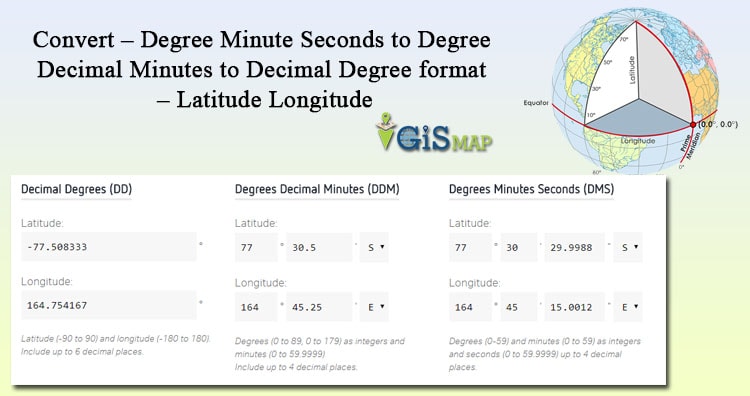
To convert GPS coordinates to decimal degrees, you need to understand the format of GPS coordinates and the conversion process. GPS coordinates are typically represented in the format of degrees, minutes, and seconds (DD MM SS). To convert this format to decimal degrees, you need to perform a series of calculations.
Understanding GPS Coordinates Format
The GPS coordinates format consists of degrees, minutes, and seconds. The degrees part represents the whole number of degrees, the minutes part represents the fraction of a degree in minutes, and the seconds part represents the fraction of a minute in seconds. To convert this format to decimal degrees, you need to follow these steps:
- Write down the GPS coordinates in the format of degrees, minutes, and seconds.
- Convert the minutes and seconds to decimal degrees by dividing the minutes by 60 and the seconds by 60^2.
- Add the decimal degrees values to the degrees value to get the final decimal degrees coordinate.
Conversion Process for Latitude and Longitude
The conversion process for latitude and longitude involves the same steps, but you need to be careful with the signs. The latitude values range from -90 to 90, and the longitude values range from -180 to 180. To convert latitude and longitude to decimal degrees, you need to follow these steps:
- Determine the latitude or longitude value in the format of degrees, minutes, and seconds.
- Convert the minutes and seconds to decimal degrees using the formula: decimal degrees = degrees + (minutes / 60) + (seconds / 3600).
- Assign the correct sign to the decimal degrees value based on whether it is latitude or longitude.
Using Online Tools for Conversion
There are many online tools available that can help you convert GPS coordinates to decimal degrees. These tools are often free and easy to use. To use an online tool for conversion, you need to follow these steps:
- Search for an online GPS coordinates converter tool.
- Enter the GPS coordinates in the format of degrees, minutes, and seconds.
- Click the convert button to get the decimal degrees coordinate.
Decimal degrees are an essential format for GPS navigation because they provide a more accurate and precise way of representing locations. To use decimal degrees in GPS navigation, you need to:
- Understand the decimal degrees format and how to convert GPS coordinates to it.
- Use a GPS device or software that supports decimal degrees.
- Enter the decimal degrees coordinates into the GPS device or software to navigate to the desired location.
Common Errors in Converting GPS Coordinates to Decimal Degrees
There are several common errors that people make when converting GPS coordinates to decimal degrees. To avoid these errors, you need to:
- Double-check the GPS coordinates format and ensure it is in the correct order.
- Use the correct conversion formula and calculator to perform the calculations.
- Verify the decimal degrees coordinate by plugging it back into a GPS device or software to ensure it matches the original GPS coordinates.
How do you convert GPS decimals to degrees?
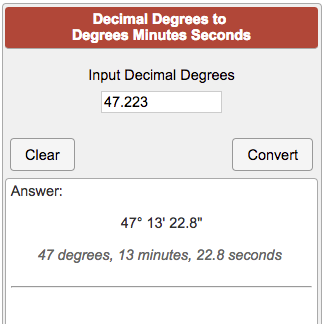
To convert GPS decimals to degrees, you need to understand the format of GPS coordinates. GPS coordinates are usually expressed in decimal degrees format, which is a combination of degrees, minutes, and seconds. The decimal degrees format is a simpler way to represent GPS coordinates, but it can be converted to the traditional degrees, minutes, and seconds format.
Understanding Decimal Degrees Format
The decimal degrees format represents GPS coordinates as a decimal value. For example, a coordinate in decimal degrees format might look like 43.6543, -79.3832. To convert this to degrees, minutes, and seconds, you need to separate the degrees from the decimal part. The whole number part represents the degrees, while the decimal part represents the minutes and seconds. Here are the steps to convert decimal degrees to degrees, minutes, and seconds:
- Separate the whole number part from the decimal part.
- Multiply the decimal part by 60 to convert it to minutes.
- Take the whole number part of the result as the minutes and multiply the decimal part by 60 to convert it to seconds.
Converting Decimal Degrees to Degrees, Minutes, and Seconds
Converting decimal degrees to degrees, minutes, and seconds involves a few simple calculations. For example, if you have a coordinate in decimal degrees format like 43.6543, you would separate the whole number part (43) from the decimal part (0.6543). Then, you would multiply the decimal part by 60 to get the minutes, which would be 39.258. The whole number part of this result (39) represents the minutes, and the decimal part (0.258) can be multiplied by 60 to get the seconds, which would be 15.48. Here are the steps to convert decimal degrees to degrees, minutes, and seconds:
- Separate the whole number part from the decimal part.
- Multiply the decimal part by 60 to convert it to minutes.
- Take the whole number part of the result as the minutes and multiply the decimal part by 60 to convert it to seconds.
Using Online Tools for Conversion
There are many online tools available that can convert GPS decimals to degrees for you. These tools can save you time and effort, especially if you need to convert a large number of coordinates. Most of these tools are free and easy to use, and they can provide accurate results. Here are some advantages of using online tools for conversion:
- Time-saving: Online tools can convert coordinates quickly and efficiently.
- Accuracy: Online tools can provide accurate results, reducing the risk of human error.
- Convenience: Online tools are often free and easy to use, making them a convenient option for converting GPS decimals to degrees.
Understanding the Importance of Conversion
Converting GPS decimals to degrees is important for several reasons. Firstly, it allows you to represent GPS coordinates in a more traditional format, which can be easier to understand and work with. Secondly, it enables you to use GPS coordinates in applications that require the degrees, minutes, and seconds format. Here are some reasons why conversion is important:
- Traditional format: Converting GPS decimals to degrees allows you to represent coordinates in a more traditional format.
- Compatibility: Conversion enables you to use GPS coordinates in applications that require the degrees, minutes, and seconds format.
- Accuracy: Conversion can help ensure accuracy in GPS navigation and mapping applications.
Common Applications of Conversion
Converting GPS decimals to degrees has several practical applications. For example, it is used in GPS navigation systems, mapping applications, and surveying. It is also used in aviation and maritime navigation, where accurate positioning is critical. Here are some common applications of conversion:
- GPS navigation: Conversion is used in GPS navigation systems to provide accurate positioning and direction.
- Mapping: Conversion is used in mapping applications to create accurate maps and charts.
- Surveying: Conversion is used in surveying to determine accurate positions and boundaries.
How do I change Google Maps to decimal degrees?

To change Google Maps to decimal degrees, you need to access the coordinate settings in the application. By default, Google Maps displays locations in a standard address format, but you can switch to decimal degrees to get the precise latitude and longitude coordinates of a location. This can be particularly useful for geolocation purposes or when you need to provide exact coordinates.
Understanding Decimal Degrees in Google Maps
To work with decimal degrees in Google Maps, it's essential to understand what they represent. Decimal degrees are a way of expressing geographic coordinates as decimal numbers rather than degrees, minutes, and seconds. This format is convenient for calculations and programming purposes. When you switch to decimal degrees, you'll see the latitude and longitude of your location displayed in this format:
- The latitude is the distance north or south of the equator, ranging from -90 to 90 degrees.
- The longitude is the distance east or west of the prime meridian, ranging from -180 to 180 degrees.
- Decimal degrees can be precise to several decimal places, making them useful for accurate location identification.
Changing Coordinate Format in Google Maps
To change the coordinate format in Google Maps to decimal degrees, you typically need to access the application's settings or preferences. The exact steps can vary depending on whether you're using the web version or the mobile app:
- Open Google Maps and click on the menu icon, usually represented by three horizontal lines or a red location marker.
- Look for settings or preferences and click on it to open the settings menu.
- Scroll down to the coordinate or units section and select decimal degrees as your preferred format.
Using Decimal Degrees for Geolocation
Decimal degrees are particularly useful for geolocation purposes, allowing you to pinpoint exact locations:
- They can be used in GPS devices and mapping software to provide precise location coordinates.
- Web developers can use decimal degrees in their applications to geocode locations and display them on a map.
- For outdoor activities like hiking or biking, decimal degrees can help you navigate more accurately using a map and compass or a GPS device.
Benefits of Using Decimal Degrees in Google Maps
There are several benefits to using decimal degrees in Google Maps, including:
- Precision: Decimal degrees provide a high level of precision, making them ideal for applications where exact coordinates are necessary.
- Convenience: This format is easier to work with in mathematical and programming contexts, as it eliminates the need to convert between degrees, minutes, and seconds.
- Universality: Decimal degrees are a standard format that can be understood and used across different platforms and applications.
Troubleshooting Common Issues with Decimal Degrees
If you encounter issues when trying to use decimal degrees in Google Maps, such as inaccurate coordinates or formatting problems, you can try the following:
- Check your settings: Ensure that your Google Maps settings are set to display coordinates in decimal degrees.
- Update your application: Make sure you're using the latest version of Google Maps, as updates often resolve bugs and improve performance.
- Clear cache and data: Sometimes, clearing the cache and data of the Google Maps app can resolve display issues related to decimal degrees.
How to convert GPS coordinates to decimal degrees in Excel?
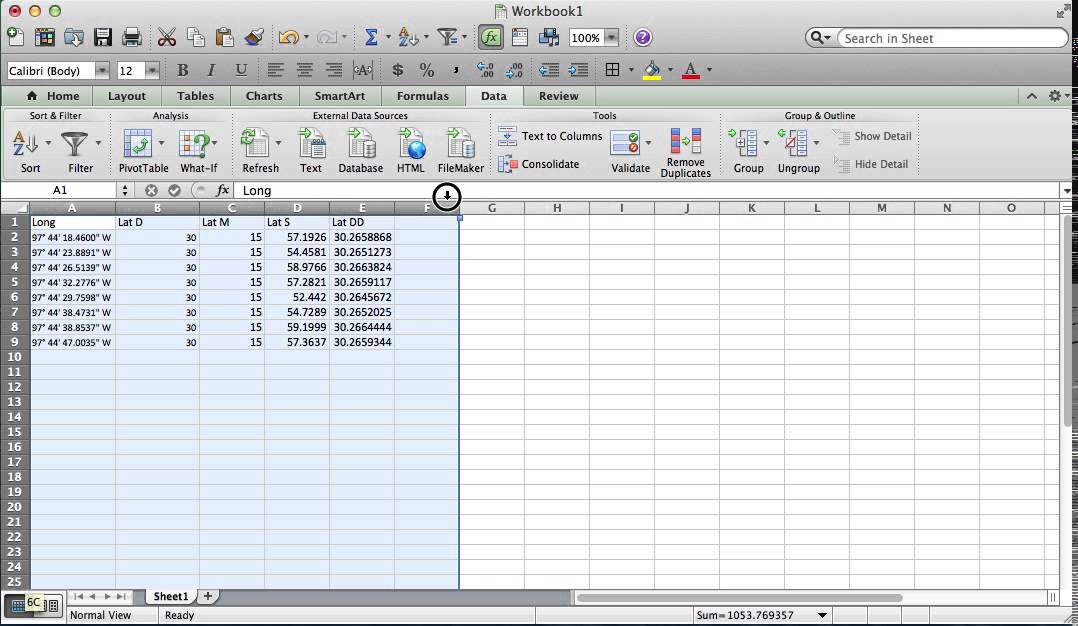
To convert GPS coordinates to decimal degrees in Excel, you can use a formula that takes into account the degrees, minutes, and seconds of the coordinates. The formula is: `=Degrees + (Minutes/60) + (Seconds/3600)`. This formula can be applied to both latitude and longitude coordinates.
Understanding GPS Coordinate Formats
GPS coordinates can be represented in different formats, including degrees, minutes, and seconds (DMS) and decimal degrees (DD). To convert between these formats, you need to understand the relationship between them. Here are the steps to follow:
- Identify the degrees, minutes, and seconds of the GPS coordinate.
- Use the formula `=Degrees + (Minutes/60) + (Seconds/3600)` to convert the coordinate to decimal degrees.
- Apply the formula to both latitude and longitude coordinates to get the desired output.
Converting DMS to Decimal Degrees in Excel
To convert DMS to decimal degrees in Excel, you can use a combination of formulas and functions. The TEXT function can be used to extract the degrees, minutes, and seconds from the GPS coordinate, and then the formula `=Degrees + (Minutes/60) + (Seconds/3600)` can be applied to convert the coordinate to decimal degrees. Here are the steps to follow:
- Use the TEXT function to extract the degrees, minutes, and seconds from the GPS coordinate.
- Apply the formula `=Degrees + (Minutes/60) + (Seconds/3600)` to convert the coordinate to decimal degrees.
- Use the ABS function to ensure the result is a positive or negative value, depending on the hemisphere.
Handling Hemisphere Information
When converting GPS coordinates to decimal degrees, it is essential to consider the hemisphere information. The hemisphere can be either North or South for latitude and East or West for longitude. To handle hemisphere information, you can use the IF function in Excel to apply a negative sign to the result if the hemisphere is South or West. Here are the steps to follow:
- Identify the hemisphere of the GPS coordinate.
- Use the IF function to apply a negative sign to the result if the hemisphere is South or West.
- Apply the formula `=Degrees + (Minutes/60) + (Seconds/3600)` to convert the coordinate to decimal degrees.
Applying the Conversion Formula to a Range of Cells
To convert a range of GPS coordinates to decimal degrees, you can apply the conversion formula to an entire column or row in Excel. This can be done by entering the formula in the first cell of the range and then copying it down to the other cells. Here are the steps to follow:
- Enter the conversion formula in the first cell of the range.
- Copy the formula down to the other cells in the range.
- Use the $ symbol to make the formula reference absolute cell references.
Troubleshooting Common Errors
When converting GPS coordinates to decimal degrees in Excel, you may encounter errors due to incorrect formatting or incorrect application of the conversion formula. To troubleshoot these errors, you can check the format of the GPS coordinates and ensure that the formula is applied correctly. Here are the steps to follow:
- Check the format of the GPS coordinates to ensure it is in the correct format.
- Verify that the formula is applied correctly and that the hemisphere information is handled correctly.
- Use the ERROR function to identify and debug any errors that occur.
Frequently Asked Questions (FAQs)
What is the GMS GPS Coordinates to Decimal Degrees Calculator and how does it work?
The GMS GPS Coordinates to Decimal Degrees Calculator is an online tool designed to convert Geographic Coordinate Systems from GMS (Grados, Minutos, Segundos) format to Decimal Degrees format. This calculator is particularly useful for individuals who need to work with GPS coordinates in various fields such as geography, navigation, and surveying. The calculator takes the GMS coordinates as input, which consists of degrees, minutes, and seconds, and then converts them into a decimal degree format, which is a more convenient and efficient way of representing coordinates. The conversion process involves algorithms that take into account the earth's ellipsoidal shape and the coordinate reference system being used.
What are the benefits of using the GMS GPS Coordinates to Decimal Degrees Calculator?
Using the GMS GPS Coordinates to Decimal Degrees Calculator offers several benefits, including increased accuracy and efficiency in working with GPS coordinates. The calculator eliminates the need for manual calculations, which can be prone to errors, and provides a quick and reliable way of converting coordinates. Additionally, the calculator supports multiple coordinate systems, including WGS84 and NAD83, making it a versatile tool for users who need to work with different reference systems. The calculator also provides detailed instructions and examples to help users understand how to use it correctly, making it an accessible tool for users with varying levels of expertise.
How do I input GMS coordinates into the GMS GPS Coordinates to Decimal Degrees Calculator?
To input GMS coordinates into the calculator, users need to enter the degrees, minutes, and seconds values separately into the corresponding fields. The calculator typically has three input fields, one for each component of the GMS coordinate. Users can enter the values using numeric characters, and the calculator will automatically validate the input to ensure that it is in the correct format. It is important to note that the calculator may have specific requirements for the input format, such as using decimal points or colons to separate the values, so users should carefully read the instructions provided with the calculator to ensure that they are entering the coordinates correctly.
Can I use the GMS GPS Coordinates to Decimal Degrees Calculator for commercial purposes?
The GMS GPS Coordinates to Decimal Degrees Calculator can be used for commercial purposes, but users should check the terms and conditions of the calculator to ensure that they are compliant with any usage restrictions. Some calculators may have licensing requirements or usage limits that apply to commercial use, so users should review the documentation carefully before using the calculator for business purposes. Additionally, users should ensure that they are using the calculator in a way that is consistent with industry standards and best practices, to avoid any potential issues with data accuracy or coordinate integrity. By using the calculator in a responsible and informed manner, users can benefit from its convenience and efficiency while minimizing any potential risks.
Deja una respuesta
Entradas Relacionadas